
Why does my AI face swap look wrong?Causes and fixes
A blurry face, someone who does not look like you, the wrong person changed, lips out of sync or a swap that was refused: almost every bad result comes from the photo or from the seconds you picked. Here is the cause and the fix for each one, from how oVideo’s Put Yourself In actually works.
Updated
Price shown before you create
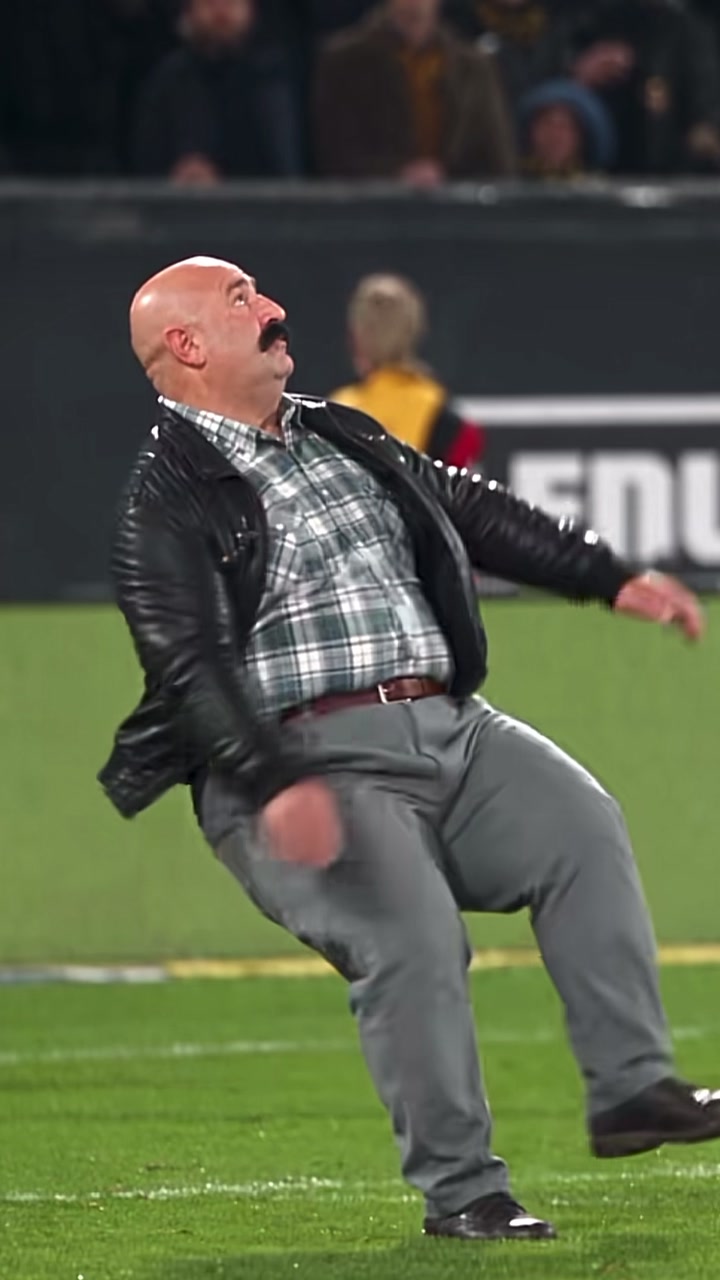
What a clean result looks like: one sharp photo, one player big in the frame, no cuts.
Short answer
Why does an AI face swap look wrong?
Because the AI only has what you give it: one photo for the person and a few seconds of video for the moves. A dark, angled or covered photo gives a face that is blurry or not quite you. Seconds with cuts, several people, a tiny face or fast spins make the AI lose the person, so the wrong one changes, the face flickers or the lips slip. Fix the photo first, then move the seconds to one clear, continuous shot.
- Photo: sharp, front facing, no sunglasses, good light
- Clip: one person big in the frame, no cuts inside the seconds
- Refused by the safety filter: no video, credits back
- Usually about 10 minutes; half finish in 7 to 13
Causes and fixes checked in the oVideo app on November 6, 2026.
At a glance
Symptom, cause, first fix
| What you see | Most likely cause | Try first |
|---|---|---|
| Blurry or soft face | A dark, blurry or tiny photo, or a person far from the camera in the clip | A sharp, front facing photo in even light; seconds where the person is big in the frame; 1080p on your own clip |
| Does not look like me | A side angle, sunglasses, a hand or a filter on the photo | A recent photo, face straight to the camera, nothing covering it, no beauty filter |
| The wrong person changed | Several people in the seconds you picked; the main one is replaced | Pick seconds where your target is the clear main person, say who changes in a Premium prompt, or use a duo or trio template |
| Lips out of sync | A cut, a turned head or a small face inside the chosen seconds | One continuous shot where the face is close and visible |
| Face flickers or changes | Hard cuts, fast spins or something passing in front of the face | Start just after a cut and stop before the next one |
| Hair, body or clothes changed | That is the design: the whole person comes from your photo | Wear the hair and clothes you want to see in the photo |
| Video cropped | The result is made in the nearest of three shapes: 9:16, 16:9 or square | Check the crop note before you create, or trim the clip to one of those shapes |
| Refused, no video | The safety filter refused the photo or the clip, for example over sensitive content | Use your own photo or one of someone who agreed; the credits come back |
Causes and fixes checked in the oVideo app on November 6, 2026.
Symptom by symptom
What went wrong, and how to fix it
Why is my face swap blurry?
The face can only be as sharp as the photo it comes from and the space it gets in the frame. A dark or blurry photo, a person far from the camera, or fast motion all soften it. Use a sharp photo in even light, pick seconds where the person is big, and choose 1080p on your own clip (templates are 720p).
Why does it not look like me?
One photo is all the AI knows of you. Side angles, sunglasses, a cap peak, a hand near the face, beauty filters and old photos all cost likeness. Use a recent, front facing photo with the face fully visible. The light and the angles come from the clip, so expect you in that scene, not a copy of the photo.
Why did the wrong person change?
On your own clip the main person in the seconds you pick is replaced: the one who is biggest and stays in view. With two people of the same size, the AI may pick the other one. Move the seconds to where your target is clearly in front, or use a duo or trio template to replace two or three people at once. On Premium you can also say which person changes in the prompt, for example: Replace only the person in the middle with @Person1. Do not change the others.
Why are the lips out of sync?
The new person copies the mouth and head of the original, and the original audio is laid back on top in sync. Sync holds when the face is close and visible. It slips at a cut, when the head turns away, or when the face is tiny. Pick one continuous shot of the person talking or singing.
Why does the face flicker, melt or change mid video?
Cuts and fast motion. After a cut the AI has to find the person again, and spins or objects passing in front of the face break its hold for a moment. Start just after a cut, stop before the next one, and avoid seconds where the face is covered.
Why did my hair, body and clothes change?
That is how a character swap differs from a face swap: face, hair, facial hair, body shape and outfit all come from your photo, while the moves, camera, background and other people stay. Wear the clothes you want to see in the photo. Some templates, like Solo Goal, keep the costume of the scene on purpose. On Premium you can keep the clothes from your clip with a prompt such as: Replace the main person with @Person1 but keep the clothes from @Video.
Why is my video cropped?
The result is made in the nearest of three shapes: vertical 9:16, landscape 16:9 or square. A clip in between is cropped, and the app says “will be cropped to” with the shape before you create, so you can move or trim it first.
Why was my swap refused?
The AI safety filter refused the photo or the clip, for example over content it treats as sensitive. No video is made and the credits come back automatically. Every refusal from October 15 to November 6, 2026 was refunded. Use your own photo or one of someone who agreed.
Why is it taking so long?
A swap usually takes about 10 minutes; half finish in 7 to 13 minutes (our median from October 15 to November 6, 2026). You can close the page and start up to 3 videos at once; each lands in your gallery. If the service is very busy, the app says so and refunds the credits.
Why will my link not import?
The app names the reason: the video is private or removed, the link has no video, the clip is shorter than 3 seconds or longer than 3 minutes, the file is too large, or the daily import limit is reached. Longer links keep the first 60 seconds. Saving the video and uploading it always works.
Causes and fixes checked in the oVideo app on November 6, 2026.
Before you try again
The checklist that fixes most swaps
The same hints the app shows under “Not what you expected?”, written out in full.
The photo
- One person, face clearly visible, from the front.
- No sunglasses, cap peak, hair or hands over the face.
- Good, even light; no heavy beauty filter.
- Waist up or full body, in the clothes you want to see.
- Recent: the beard, glasses and hair you have now.
The seconds you pick
- The person you want to replace is the clear main person.
- They stay in frame for most of the 3 to 15 seconds (up to 30 on Premium).
- No cut inside: start after one, stop before the next.
- The face is not tiny and not covered for long.
- Vertical, landscape or square, so nothing important is cropped.
Your credits
What happens when a swap fails
The price is shown before you create: 19 credits per second at 720p, 26 at 1080p; Premium is 29 at 720p and 43 at 1080p. The credits are held while the video is made and only taken once it is ready.
If no video comes out, the credits go back automatically in almost every case: a safety refusal, a busy moment, a timeout or an error on our side. Every safety refusal from October 15 to November 6, 2026 was refunded.
The one case the app tells you it cannot refund is a video the AI processed in full that still gave no usable result. The message then suggests a clearer, front facing photo, which is also the most common fix.
Face swap or character swap
When the face is right but it still looks off
A classic face swap pastes a new face onto the original person. The face may be perfect, yet the hairline, the head shape and the body still belong to someone else, and viewers notice the moment the head turns.
A character swap replaces the whole person: face, hair, build and the outfit from your photo, moving exactly like the original. If your face swaps keep looking pasted on, that is the switch to make. More in AI character swap video and video face swap.
In your words
What people expected, and what to change
Real requests typed into oVideo in October and November 2026, shortened and anonymised.
- “Preserve my identity exactly: my face shape, eyes, nose, mouth and my glasses.”
- The likeness comes only from the photo, so put everything you want to keep in it: the glasses on, the beard you have now, your usual hair. A recent, sharp, front facing photo is the single biggest fix for “it does not look like me”.
- “Replace the person in the video with the person from the photo, so that they also speak in sync with the audio.”
- The new person copies the mouth and head of the original, and the original sound is laid back on top. It stays in sync when the face is close and visible for the whole stretch you pick; a cut or a turned head is where it slips.
- “Replace the singer with me in the entire music video, from the very first frame to the last.”
- One swap covers 3 to 15 seconds on Standard or up to 30 seconds on Premium. A full video full of cuts would also break the likeness at every cut. Swap the best stretches one by one and join them in any editor.
- “Replace the original male main character with me, keep my light beard as accurately as possible.”
- Facial hair is taken from the photo, so a clean shaven photo gives a clean shaven result. Use a photo where the beard is visible in good light.
- “Recreate the video, replacing the woman with me and making my friend the male lead.”
- On your own clip Standard replaces one person, the main one, per video, so the second person stays as filmed. Premium replaces up to 4, one photo each: add your photo and your friend’s and say who becomes who, for example: Replace the person on the left with @Person1 and the person on the right with @Person2. Keep everything else in @Video the same. A duo template with one photo each also works for two new people in a ready scene.
- “Replace the famous player’s face with mine.”
- Swapping into a clip is fine when you may use it; the new face has to be yours or that of someone who agreed to it.
Fix it in this order
Which change to make first
- 1The face is blurry or not you: change the photo before anything else; it is the cheapest fix and the most common cause.
- 2The wrong person changed: move the 3 to 15 seconds to where your target is the clear main person, or on Premium say who changes in the prompt.
- 3The face flickers or the lips slip: shorten the seconds to one continuous shot without a cut.
- 4Two people should change: use Premium on your own clip (up to 4 people, one photo each) or a duo or trio template; Standard replaces one person.
- 5Still soft on a good photo: choose 1080p on your own clip.
- 6Refused by the safety filter: switch to your own photo or one of someone who agreed; the credits are already back.
Answers
Frequently asked questions
- Why does my AI face swap look fake?
- Usually because only the face was replaced: the hairline, the head shape and the body of the original person stay and give it away. A whole person swap such as oVideo’s Put Yourself In replaces face, hair, build and outfit together. If it still looks off, the photo or the clip is the cause; see the fixes per symptom above.
- Why is my face swap video blurry?
- The three common causes: a dark or blurry photo, a person who is small or far away in the clip, and fast motion. Use a sharp photo in even light, pick seconds where the person is big in the frame, and choose 1080p on your own clip. Templates are made in 720p.
- Why does the face swap not look like me?
- The AI only knows you from one photo. A side angle, sunglasses, a hand, a heavy filter or an old photo all lower the likeness. Use a recent photo, face straight to the camera, nothing covering it. The light and angles still come from the clip, so it looks like you in that scene, not a copy of the photo.
- Why did the AI swap the wrong person?
- On your own clip the main person in the seconds you pick is replaced: usually the one who is biggest in the frame and stays in view. Move the 3 to 15 seconds to a stretch where your target is clearly in front. On Premium you can also say which person changes in the prompt, for example: Replace only the person in the middle with @Person1. Do not change the others. To replace two or more people together, use Premium (up to 4 people, one photo each) or a duo or trio template.
- Why are the lips out of sync after a face swap?
- The new person copies the mouth movement of the original, and the original sound is put back in sync. It slips where the face is small, turned away or cut, so pick one continuous shot with the face close to the camera. The new person cannot say different words than the clip.
- Why does the face flicker or change in the middle of the video?
- A hard cut, a fast spin or something passing in front of the face. At a cut the AI has to find the person again, and that is where it drifts. Start just after a cut and stop before the next one.
- Why did my face swap get refused?
- The AI safety filter refused the photo or the clip, for example over sensitive content. No video is made and the credits come back automatically. Try again with your own photo or one of someone who agreed to it.
- Do I get my credits back if the swap fails?
- In almost every case, automatically: a safety refusal, a busy moment, a timeout or an error on our side. Every safety refusal from October 15 to November 6, 2026 was refunded. The one case the app tells you it cannot refund is a video the AI processed in full without a usable result.
- How long should an AI character swap take?
- On oVideo the median is about 10 minutes from pressing create to the finished video, and half of all swaps finish in 7 to 13 minutes (October 15 to November 6, 2026). You can close the page; the video lands in your gallery.
- Why did my hair and clothes change too?
- Because Put Yourself In replaces the whole person, not just the face: face, hair, facial hair, body shape and outfit all come from your photo. Wear what you want to see. A few templates keep the costume of the scene, such as the striker’s kit on Solo Goal. On Premium you can keep the clothes from your clip with a prompt such as: Replace the main person with @Person1 but keep the clothes from @Video.
- Why is my video cropped?
- The result is made in the nearest of three shapes: vertical 9:16, landscape 16:9 or square 1:1. If your clip is in between, the app shows “will be cropped to” with the shape before you create.
- Which photo works best for a face swap video?
- One person, face clearly visible and facing the camera, no sunglasses, good light. Waist up or full body is best, because the outfit and the build come from the photo too. JPG, PNG, WebP and HEIC photos all work.
- Which clips are hard for an AI face swap?
- Clips with cuts inside the chosen seconds, several people of the same size, a face that is tiny or turned away for long, fast spins and things passing in front of the person. One person, big in the frame, one continuous shot is the easy case.
- Will choosing 1080p fix a blurry swap?
- It helps when the cause is resolution, and you can pick it on your own clip (26 credits per second instead of 19). It does not fix a blurry photo or a face that is tiny in the clip; fix those first.
- Why won’t my TikTok or Instagram link import?
- The app tells you which reason applies: the video is private or removed, the link has no video, the clip is shorter than 3 seconds or longer than 3 minutes, or the file is too large. Longer links keep the first 60 seconds. You can also save the video and upload it.
- Can I make a face swap of a celebrity?
- The idea is that you take the star’s place yourself. Use only photos of yourself or of people who agreed to it; you confirm that before every video. Never use anyone’s face without their permission.
- How much does it cost to try again?
- A new attempt is priced like any swap: 19 credits per second at 720p and 26 at 1080p (Premium 29 and 43), shown before you create. Credits come with paid plans from $10 a month; there are no free swaps. A failed attempt that was refunded costs nothing.
Your photo, your video
- Used only for your videoYour photo and clip go only to the AI that makes your video, and they are kept in your account.
- Private until you share itThe finished video waits in your gallery; nothing is posted for you unless you choose to publish it.
- Deleted when you askEmail support@ovideo.io and your uploads and videos are deleted within 30 days.
- Only people who said yesUse photos of yourself or of people who agreed, and turn on the AI label when you post.
Details in the privacy policy. How it works: Put Yourself In help and what credits cost.
Related
- AI character swap videoPut yourself in any video from one photo, sound kept.
- Video face swapSwap your face into a clip online with one photo.
- AI dance generatorDance any viral dance from one photo, solo or with friends.
- Put yourself in a football videoScore the goal or take over your own match clip from one photo.
- Özil goal AI trendBe the scorer of the viral solo goal from one photo.
- Best apps for the Özil goal trendEight tools that do the trend, checked November 2026.
- Best AI dance video appsSeven photo to dance tools, checked November 2026.
- Best Christmas video appsSix apps for funny Christmas videos with your face.
- AI trend videosJoin viral trends with one photo per person.
- AI face swap videoPut your face into any clip with one photo.
- AI body swapSwap your whole look, build and outfit into a video.
- AI character swapReplace anyone in a video with someone new.
- AI dance videoMake yourself dance from one photo.
- Make a photo move like a videoYour photo copies the moves of any clip.
- Recreate a video with yourselfRemake any clip with you in the main role.
- Swap yourself in from a linkPaste a TikTok, Reel or YouTube Short and add one photo.
- Put yourself in a TikTokCopy the TikTok link, paste it and add one photo.
- Put yourself in an Instagram ReelPaste a Reel or video post link and add one photo.
- Put yourself in a YouTube ShortPaste a Shorts link, or a video up to 3 minutes.
- Put yourself in a music videoBecome the singer, rapper or dancer, with the song kept.
- AI face swapSwap faces in any photo, hair included.
- AI head swapSwap the whole head in a photo, not just the face.
- Multiple face swap videoSwap two or three people into one clip.
- AI pet swapSwap your own dog or cat into a viral pet clip.
- AI video trendsReady made viral templates for one or two people.
- Viggle AI alternativesFive swap tools compared, prices checked October 2026.
- Higgsfield alternativesFive tools for viral templates and swaps, prices checked October 2026.
- PixVerse alternativesFive tools for viral templates, swaps and dance videos, checked October 2026.
- Best AI character swap toolsNine swap tools, ordered by what each is best for.
- Best face swap video appsSix face swap tools for video, compared October 2026.
- Best AI body swap appsFive whole body swap apps for dance trends and duos, compared November 2026.
- Best face swap appsSeven face swap tools for photos, compared October 2026.
- Best AI pet dance appsSix tools that make a dog or cat dance, compared October 2026.
- Put yourself in a movie scenePlay the lead in a scene you may use, sound kept.
- AI Santa videoBecome Santa in a Christmas clip from one photo.
- Magic Hour alternativesFive swap tools compared, checked November 2026.
- AI character swap statistics 2026How people really use swaps, from our own data.
- Elf Yourself alternativesSeven elf dance tools with your face, checked November 2026.
- How to elf yourselfThe app, a real looking AI elf, or your own elf clip.
- Put yourself in a Christmas moviePlay the lead in a Christmas scene you may use, sound kept.
- AI Christmas video ideas28 ideas for TikTok, Reels and Shorts, each with how to make it.
- Enzo Fernández celebration AI trendDo the hands behind the ears celebration with your own face.
- Tip Toeing in My Jordans AI trendBe the tiptoeing dancer from the viral barn clip.
- AI stadium fan cam trendBe the fan the big screen camera finds, crowd kept.
- Best AI motion transfer appsKling Motion Control, Viggle, Krea and more, vs a real clip swap.
- Reface alternativesSix face swap apps compared, plus FaceApp vs Reface.
- AI video trends this monthWhat is viral in November 2026 and how to make each one.
- Kling AI alternativesKling and Kling Motion Control alternatives, compared.
- How to replace a person in a videoCharacter replacement step by step, from one photo, sound kept.
- Can ChatGPT make a video of me?No, but a clip and one photo can. No prompt needed.
- Bad Times AI trendDo the kitchen argument with your own face, song kept.
- Damon Salvatore AI trendWalk into the church scene as you, from one photo.
- Burning Bridges AI trendRaise the silver cup under the chandeliers as you.
- Hit the Road Dude AI trendBe the driver in the pickup truck meme, lines kept.
- CapCut AI template alternativeTemplate stuck at 99%? Do the trend from the trend clip itself.
- Storm AI trendStand still in the middle while the whole crowd moves, sound kept.
- Turn the Lights Off AI trendDance alone under the blue club light as you, song kept.
- NYC subway AI trendPose on the platform while the train rushes past, from one photo.
- Gas Station Dance AI trendStep out of the car and dance by the pumps as you, sound kept.
- Marlon AI trendTalk to the camera on the night street as you, from one photo.
- Put yourself in GTA 6Be the character in a GTA clip, or make a GTA 6 picture of you.
- Put your face in the GTA 6 trailerYour whole look in one trailer shot, music kept.
- Raindance AI trendSing by the water in the duet trend as you, song kept.
- Bollywood AI videoPut yourself in a Bollywood song clip, music kept.
- AI video of me dunkingMake the dunk from one photo, crowd sound kept.
- AI video of me doing a backflipFlip on a plane wing or skydive from one photo.
- What app are people using for the AI videos?The app behind each kind of viral AI video.
- 30 second face swap videoSwap up to 30 seconds of your clip with Premium, sound kept.
- AI video of me and my friendsUp to 4 of you in one clip for up to 30 seconds, sound kept.
- How to put yourself in a videoThe free overlay way and the AI way: one photo into any clip, sound kept.
- How to put yourself in a video twiceYour photo in two to four slots, up to 30 seconds.
- Put yourself in a Sora videoSora cameos are gone; do the same job from one photo, friends too.
- Put yourself in a video gameYou in a gameplay or trailer clip, or a game style picture of you.
- Face swap video promptCopy and paste who becomes who prompts for Premium.
- AI couple dance videoYou and your partner in a duo dance, song kept.
- How to make an AI video of yourselfFive ways from one photo: a real clip, a template, a talking photo or a story.
- AI hug video generatorTwo people in a real hug clip, from two photos.
- AI video of a deceased loved oneAnimate their photo, a hug with a stand in, or their story narrated. No voice cloning.
- Hug your younger self AI videoYou today and you as a child, in one hug clip.
Try it again with a better photo
One sharp, front facing photo and 3 to 15 seconds of one continuous shot. The price shows before you create, and a refused video gives the credits back.