
Swap faces in any photowith AI
Upload a photo and a picture of the face you want in it. oVideo replaces the head and hair, matches the light of the scene, and leaves the pose, outfit and background exactly as they were. No app, no editing skills.
Updated
From 20 credits per photo
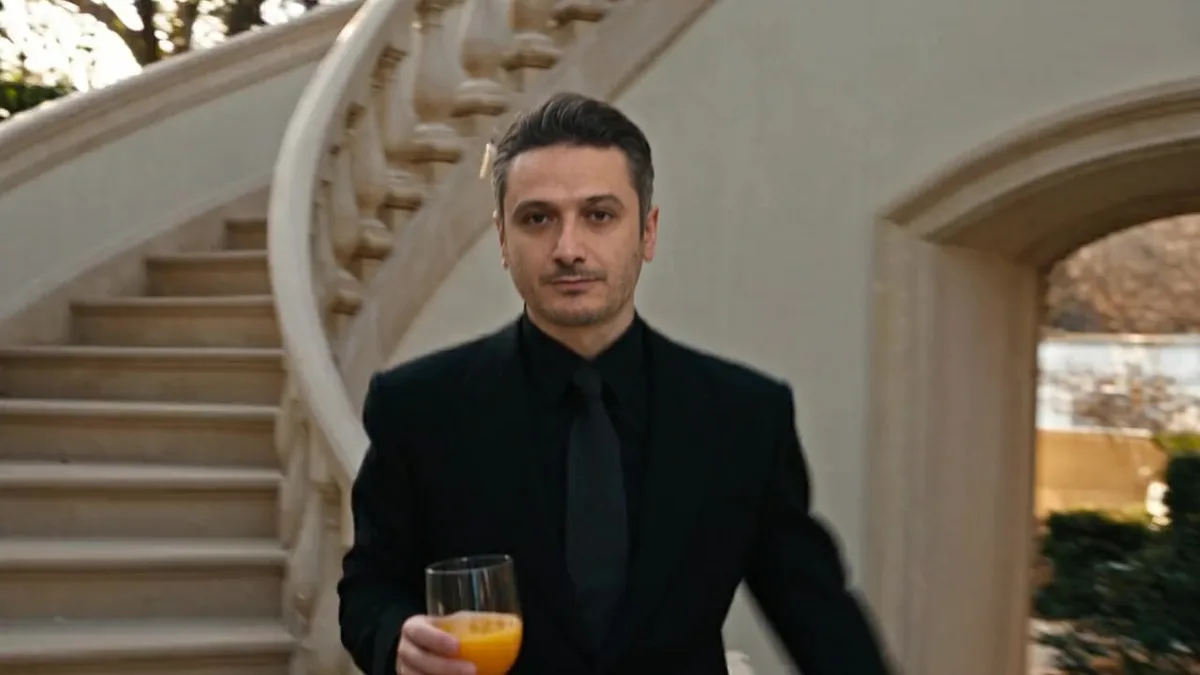
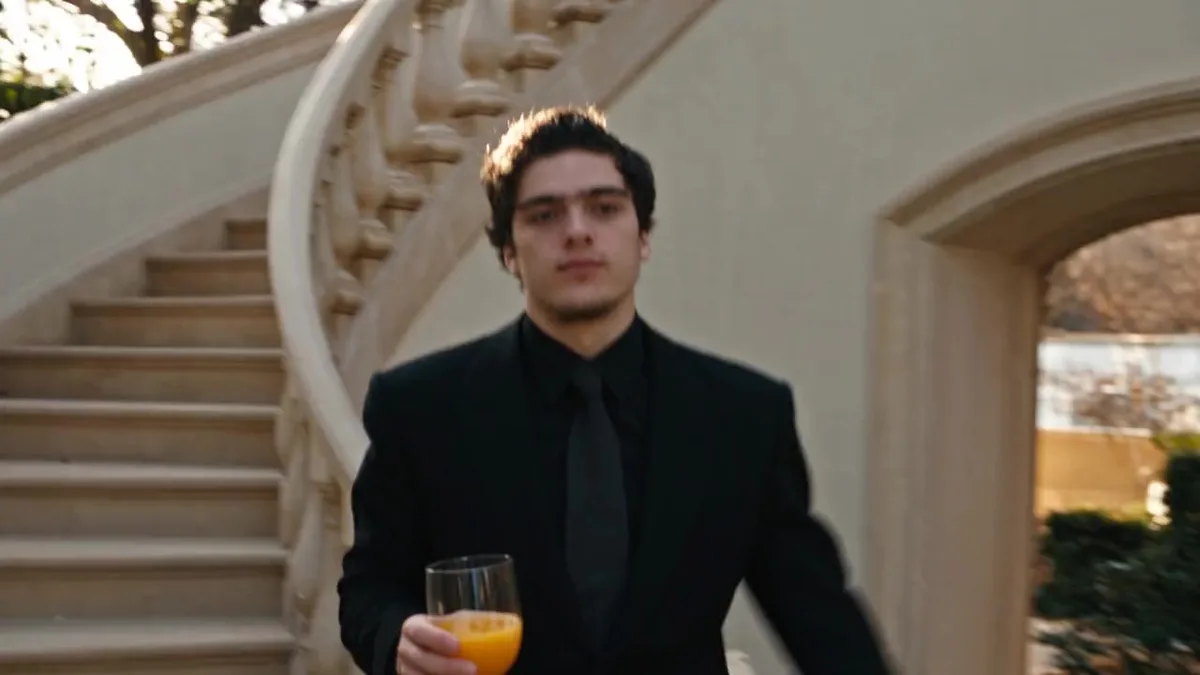
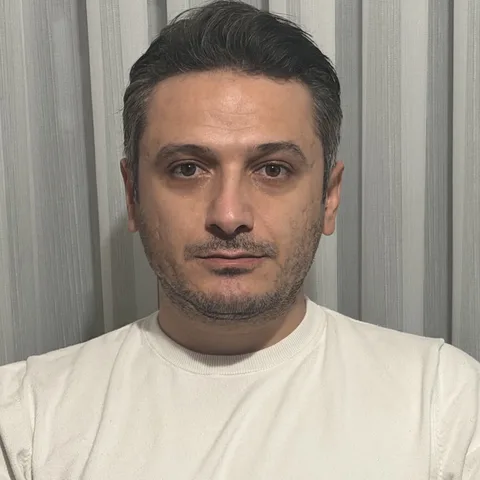
The original photo top left, the face photo bottom left, the swapped result behind them.
Swap a face in your photo
Your photos stay in your browser until you sign up. You pick the quality and see the price before anything is made.
What is AI face swap?
AI face swap puts the face of one person onto someone in another photo. On oVideo you upload the photo to change and a clear photo of the face. The AI finds the head, draws the new face and hair into that area in the light of the scene, and keeps the body, outfit and background untouched. It runs in the browser, so there is no app to install.
At a glance
AI face swap: the facts
- Input
- Two photos: the photo to change and a clear photo of the face to use
- Photo formats
- JPG, PNG, WebP or HEIC, up to 25 MB
- What changes
- The face and hair of the person in the photo
- What stays
- Pose, body, outfit, background, light and the shape of your photo (vertical or horizontal)
- Quality and price
- Fast 20 credits, Balanced 25 credits, Best 35 credits per photo
- Speed
- Usually under a minute; the result is saved to your gallery
- Refunds
- If a swap fails, the credits come back automatically
- AI model
- Ideogram Character with an automatic head mask, run in the browser
How it works
Face swap a photo in three steps
- 01
Upload the photo
The picture you want to change: one person, head clearly visible.
- 02
Add the face
A clear photo of the face to put in, from the front and in good light.
- 03
Create
Pick Fast, Balanced or Best. The AI swaps the head and keeps the rest of the photo.
Why it looks real
A new head, not a sticker
Old face swap apps cut the face out of one photo and paste it over another. The skin tone, the hairline and the head shape rarely line up, and the light comes from the wrong side.
oVideo works the other way round. It masks the head in your photo and draws the new face and hair into that space, lit like the rest of the scene and turned the way the original head was turned. Everything outside the mask is left as it is, so the outfit, hands and background stay sharp.
Ideas
What people use face swap for
- The group photo where someone blinked. Put the same person’s better face from another shot into the perfect group photo.
- A new look on you. See yourself in a suit, a costume or a dream outfit by swapping your face into a photo of it.
- Jokes with friends. Swap faces with a friend who agreed, for the group chat or a birthday card.
- Characters and mockups. Try a look on a campaign photo with the face of a model who signed off on it.
Better results
Tips for a clean face swap
The face photo
- One person, looking roughly at the camera.
- Soft, even light. No sunglasses, hats or hands over the face.
- The hair in this photo is the hair you get in the result.
The photo to change
- One person, head clearly visible and not tiny in the frame.
- A head angle close to the face photo looks the most natural.
- Group photo? Crop it to the person you want to change first.
Photo or video
Want to swap a video instead?
For clips, use the AI face swap video tool: one photo puts you into any video with the original moves and sound. To replace the whole person, outfit included, see AI character swap. For the difference between a face and a head swap, read AI head swap.
Answers
Frequently asked questions
- How do I swap faces in a photo with AI?
- Upload the photo you want to change, add a clear photo of the face you want in it, pick a quality and press create. oVideo finds the head in the first photo, replaces it with the new face and hair, and keeps everything else. The new photo is ready in about a minute.
- Does the AI change only the face?
- It changes the face and the hair, the whole head, because a new face under someone else’s hairline is what makes most swaps look fake. The body, outfit, pose, background and light of the original photo stay as they were.
- What is the difference between a face swap and a head swap?
- A classic face swap moves only the inner face (eyes, nose, mouth) and keeps the original hair and head shape. A head swap moves the whole head with its hair. oVideo always does the second, which blends better. More on the AI head swap page.
- Which photos give the best face swap?
- For the face: one person, looking roughly at the camera, in good light, no sunglasses or hands in front of it. For the photo to change: one person whose head is clearly visible and not too small in the frame. A similar head angle in both photos gives the most natural result.
- Can I swap faces in a group photo?
- Use photos with one person. In a group photo the AI may change more than one head, so crop the photo to the person you want to change before you upload it.
- How long does an AI face swap take?
- Usually under a minute. Fast quality is the quickest. You can leave the page; the result is saved to your gallery.
- How much does an AI face swap cost?
- Each photo uses credits: 20 for Fast, 25 for Balanced and 35 for Best quality. Credits come with every oVideo plan, starting at $10 a month for 400 credits. You see the price before you create, and if a swap fails the credits come back automatically.
- Do I need to download a face swap app?
- No. oVideo runs in the browser on a phone or a computer. Upload the two photos, create, and download the result.
- Are my photos private?
- The photos you upload are stored in a private folder that only your account can open, and they are used only to make your image. Results are saved to your own gallery, where you can delete them.
- Can I face swap a celebrity or someone else’s photo?
- Only use photos of yourself or of people who agreed to it. Before every swap you confirm that you have permission to use the face. The AI safety filter also refuses some photos, such as famous people or sensitive content; then no image is made and your credits come back.
- Can I face swap a video too?
- Yes, with a different tool. The AI face swap video tool puts you into a clip from one photo and keeps the moves and the original sound. It is priced per second of video.
- Which AI model does oVideo use for face swap?
- Ideogram Character. First an automatic mask finds the head in your photo, then the model draws the new face and hair into exactly that area, matching the light of the scene.
Your photo, your video
- Used only for your videoYour photo and clip go only to the AI that makes your video, and they are kept in your account.
- Private until you share itThe finished video waits in your gallery; nothing is posted for you unless you choose to publish it.
- Deleted when you askEmail support@ovideo.io and your uploads and videos are deleted within 30 days.
- Only people who said yesUse photos of yourself or of people who agreed, and turn on the AI label when you post.
Details in the privacy policy.
Related
- AI character swap videoPut yourself in any video from one photo, sound kept.
- Video face swapSwap your face into a clip online with one photo.
- AI dance generatorDance any viral dance from one photo, solo or with friends.
- AI trend videosJoin viral trends with one photo per person.
- AI face swap videoPut your face into any clip with one photo.
- AI body swapSwap your whole look, build and outfit into a video.
- AI character swapReplace anyone in a video with someone new.
- AI dance videoMake yourself dance from one photo.
- Make a photo move like a videoYour photo copies the moves of any clip.
- Recreate a video with yourselfRemake any clip with you in the main role.
- Swap yourself in from a linkPaste a TikTok, Reel or YouTube Short and add one photo.
- Put yourself in a TikTokCopy the TikTok link, paste it and add one photo.
- Put yourself in an Instagram ReelPaste a Reel or video post link and add one photo.
- Put yourself in a YouTube ShortPaste a Shorts link, or a video up to 3 minutes.
- Put yourself in a music videoBecome the singer, rapper or dancer, with the song kept.
- AI head swapSwap the whole head in a photo, not just the face.
- Multiple face swap videoSwap two or three people into one clip.
- AI pet swapSwap your own dog or cat into a viral pet clip.
- AI video trendsReady made viral templates for one or two people.
- Viggle AI alternativesFive swap tools compared, prices checked October 2026.
- Higgsfield alternativesFive tools for viral templates and swaps, prices checked October 2026.
- PixVerse alternativesFive tools for viral templates, swaps and dance videos, checked October 2026.
- Best AI character swap toolsEight swap tools, ordered by what each is best for.
- Best face swap video appsSix face swap tools for video, compared October 2026.
- Best AI body swap appsFive whole body swap apps for dance trends and duos, compared November 2026.
- Best face swap appsSeven face swap tools for photos, compared October 2026.
- Best AI pet dance appsSix tools that make a dog or cat dance, compared October 2026.
Swap a face in your photo
Upload the photo and the face, pick a quality, and get the new photo in about a minute.