
Split screen videoswith gameplay underneath
Put your clip on top and Minecraft or GTA gameplay below, add captions and export a vertical video that keeps people watching. Built for TikTok, Reels and Shorts, right in your browser.
Updated
3 free exports with a new account (free plan not available in some countries)
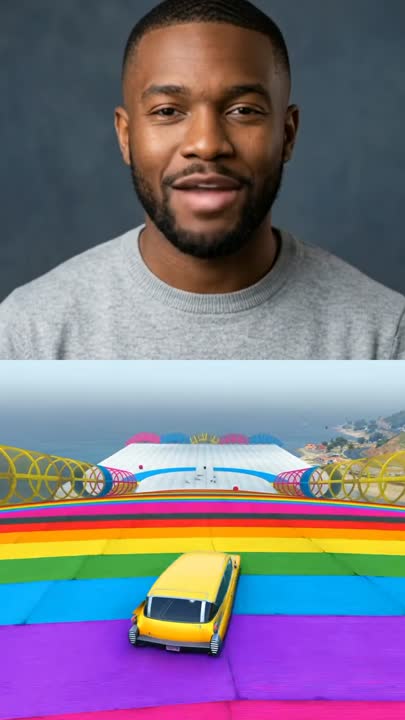
A clip on top, gameplay below, captions in the middle.
At a glance
Split screen video maker: the facts
- Layout
- Two videos stacked 50/50, top and bottom, and you can swap them
- Output
- Vertical 9:16 at 1080x1920, ready for TikTok, Reels and Shorts
- Gameplay library
- Minecraft and GTA 5 clips built in (no Subway Surfers yet), or upload your own gameplay
- Your videos
- Upload mp4, mov, webm or avi up to 2 minutes and 500 MB each, or pick from your gallery
- Captions
- Automatic transcription, editable words, 8 fonts, colours, highlight and position
- Sound
- Pick which half you hear, set the volume, add background music if you like
- Price
- 3 free exports with a new account (free plan not available in some countries), then 5 credits each on a plan. No watermark
How it works
A split screen video in three steps
- 01
Add your clip
Upload the video for the top half: a story, a podcast moment, a reaction or a meme.
- 02
Pick the gameplay
Choose a Minecraft or GTA 5 clip from the library, or upload your own for the bottom half.
- 03
Caption and export
Turn on automatic captions, style them, and export a 1080x1920 video.
Ideas
What people put on top
- Story time. Reddit style stories and storytimes, read out loud, with Minecraft gameplay below.
- Podcast clips. The best minute of an episode, with captions and gameplay to keep eyes on it.
- Reactions and memes. A funny clip on top, satisfying gameplay below, the classic brainrot layout.
- Study and facts. Short explainers and fun facts that are easier to finish with something moving underneath.
Better results
Split screens that hold attention
- Use the fit and position settings so the important part of each clip stays in view.
- Use the sound from the top clip and keep the gameplay silent.
- Turn captions on; most people scroll with the sound off.
- Let the shorter clip loop so the bottom never goes black.
Answers
Frequently asked questions
- How do I make a split screen video for TikTok?
- Open the split screen maker on oVideo, add your clip to the top half and a gameplay clip or a second video to the bottom half, turn on captions if you want them, and export. You get a vertical 1080x1920 video ready for TikTok, Reels and Shorts.
- Can I put Minecraft parkour or GTA gameplay under my video?
- Yes. The built in library has Minecraft and GTA 5 gameplay clips you can drop into the bottom half. You can also upload any gameplay clip of your own, such as a parkour run, as long as you have the right to use it.
- Is there Subway Surfers gameplay?
- Not in the split screen library yet: it has GTA 5 and Minecraft clips. For Subway Surfers or any other game, upload your own gameplay clip (up to 2 minutes and 500 MB) to the bottom half, as long as you have the right to use it.
- Can I make a reaction video?
- Yes, stacked top and bottom: the original clip in one half and your reaction in the other, exported as a vertical 1080x1920 video. The sound comes from one half you choose (plus optional music), so record your reaction with the original audible in the background if you want both heard.
- Can I put two videos side by side?
- No. The split screen maker only stacks two videos top and bottom, 50/50, in a vertical 9:16 frame. Left and right layouts are not available.
- Why do creators put gameplay under their videos?
- The moving gameplay keeps the eye busy while people listen to the top clip, a story, a podcast moment or a reaction. Many viewers watch longer, which is why the format is everywhere on TikTok and Shorts.
- Can I add captions to a split screen video?
- Yes. Captions are transcribed automatically, the language is detected for you, and you can edit the words, pick one of eight fonts, change colours and highlight, and drag the captions where you want them.
- How long can the videos be?
- Each video can be up to 2 minutes and 500 MB. The finished video is as long as the longer clip; the shorter one can loop so the screen is never empty.
- Which sound does the split screen video use?
- You choose which half the sound comes from and set its volume. You can also add background music from the preset list or your own track.
- Is the split screen maker free?
- A new account can export 3 split screen videos with no watermark and no card. The free plan is not available in some countries (much of South Asia and Sub-Saharan Africa); there, the first export already needs a paid plan.
- How much does it cost?
- A new account can export 3 split screen videos without a plan. The free plan is not available in some countries. After that, an export costs 5 credits on a paid plan (Starter is $10 a month for 400 credits). There is no watermark.
- Do I need to download an app?
- No. The split screen maker runs in the browser on your phone or computer.
Only need captions on one video? Try the auto subtitle generator or make word by word captions.
Make your split screen video
Your clip on top, gameplay below, captions on. A new account gets three free exports where the free plan is available.